> ## Documentation Index
> Fetch the complete documentation index at: https://moengage-doc-2315-external-css-font-urls.mintlify.site/llms.txt
> Use this file to discover all available pages before exploring further.
# Why Are Push Campaigns Resulting in an INVALID_SERVER_CREDS Error?
> Fix the INVALID_SERVER_CREDS error in MoEngage push campaigns by verifying your FCM sender ID, server key, and Private key file configuration.
## Problem
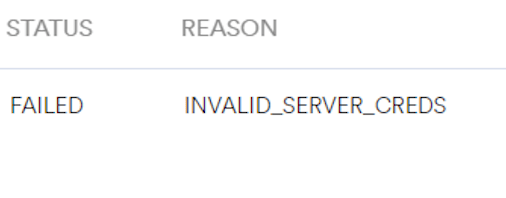
In Push campaigns, under campaign failures breakdown, the following error is displayed:
INVALID\_SERVER\_CREDS
 ## Solution
* You are receiving the "INVALID\_SERVER\_CREDS" error because the sender ID and server key provided may belong to different GCM or FCM projects.
* To resolve this issue, use the configured sender ID and server key.
* Ensure that you have the accurate FCM keys (or certificate) in your Push settings and include the ServiceKey.json file instead of the google-services.json file (if you have added it).
* Verify the **Private key file (Recommended)** on the MoEngage dashboard.
* Open the private key JSON file using any text editor.
* Check that the *project\_id* mentioned in the JSON file matches the Firebase Project ID.
* If you already have a private key on the Service Accounts page, you need not generate a new one.
## Solution
* You are receiving the "INVALID\_SERVER\_CREDS" error because the sender ID and server key provided may belong to different GCM or FCM projects.
* To resolve this issue, use the configured sender ID and server key.
* Ensure that you have the accurate FCM keys (or certificate) in your Push settings and include the ServiceKey.json file instead of the google-services.json file (if you have added it).
* Verify the **Private key file (Recommended)** on the MoEngage dashboard.
* Open the private key JSON file using any text editor.
* Check that the *project\_id* mentioned in the JSON file matches the Firebase Project ID.
* If you already have a private key on the Service Accounts page, you need not generate a new one.
 In FCM projects, the sender ID can be found in the google-services.json file.