> ## Documentation Index
> Fetch the complete documentation index at: https://moengage-doc-2315-external-css-font-urls.mintlify.site/llms.txt
> Use this file to discover all available pages before exploring further.
# Why Does the Video Upload to the Nudge Type In-app Campaign Fail?
> Fix the content upload failed error when uploading videos to MoEngage nudge in-app campaigns. The issue is typically caused by dots in file names.
## Problem
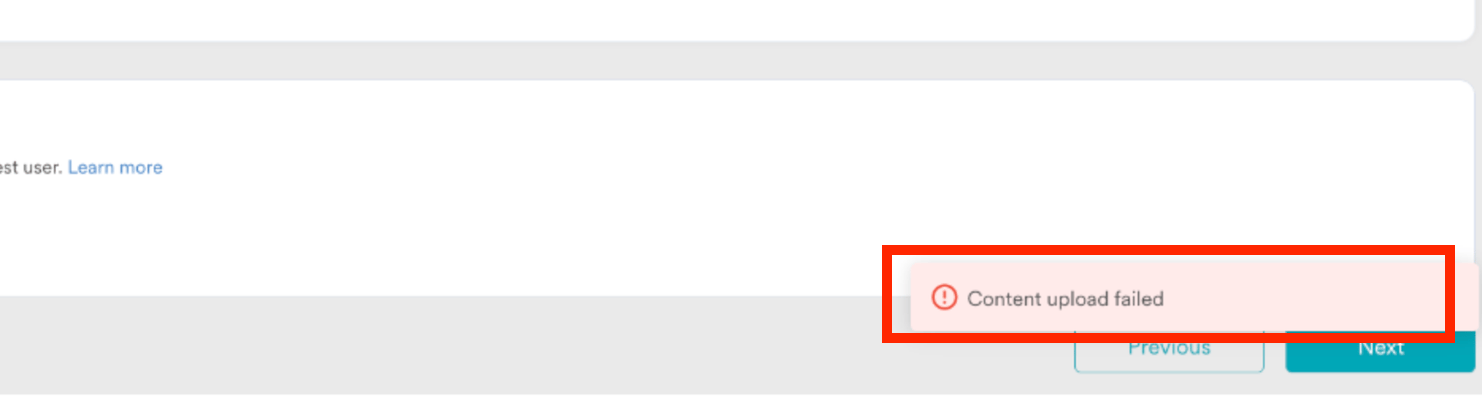
The "Content upload failed" error occurs when uploading a video to the Nudge type In-app Messaging campaign.
 ## Explanation
The “Content upload failed” error is caused by a file name exception, specifically when the file name contains dots.
## Example
If the file name is UNLMTD\_Slot Machine\_25.02.2024.mp4, the dots in the name cause the upload to fail.
## Solution
1. Log in to the dashboard, hover over to the left, and select **+Create new** > **Campaign** > **In-app**.
2. Go to step 2, **Content** > **Start from scratch** > **Zip Upload**, and upload a sample video file.
3. Remove the dots from the file name and then attempt to upload it again.
Check for any special characters before uploading files or assets.
## Explanation
The “Content upload failed” error is caused by a file name exception, specifically when the file name contains dots.
## Example
If the file name is UNLMTD\_Slot Machine\_25.02.2024.mp4, the dots in the name cause the upload to fail.
## Solution
1. Log in to the dashboard, hover over to the left, and select **+Create new** > **Campaign** > **In-app**.
2. Go to step 2, **Content** > **Start from scratch** > **Zip Upload**, and upload a sample video file.
3. Remove the dots from the file name and then attempt to upload it again.
Check for any special characters before uploading files or assets.